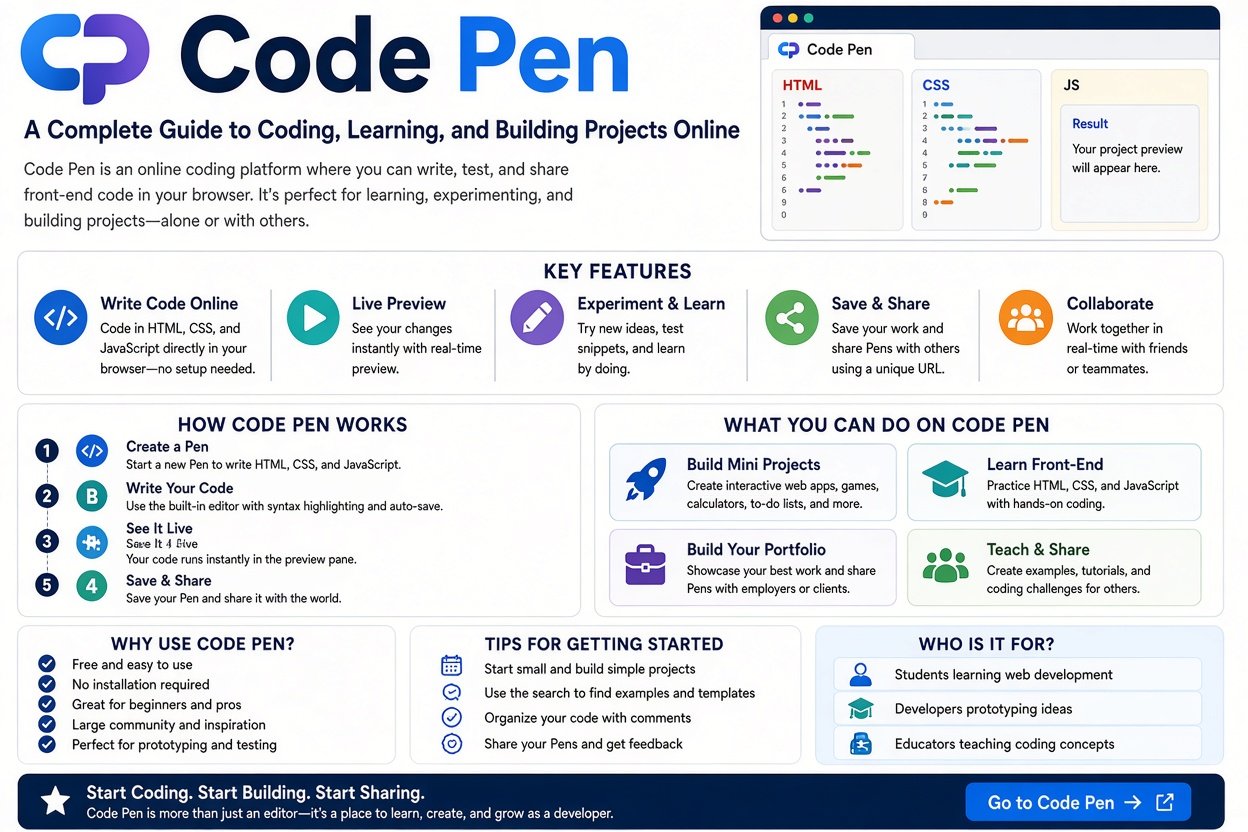
Code Pen is a popular online place for learning and testing front-end web code. It lets people write HTML, CSS, and JavaScript inside a browser. You can also see the result while you work.
For beginners, Code Pen can make coding feel easier. You do not need to start with a large software setup. Instead, you can open the editor and begin creating small web projects.
Moreover, Code Pen is also useful for experienced developers. They can test ideas, create demos, find bugs, share projects, and collect examples. The platform also has a large community of designers and developers.
What Is Code Pen?
Code Pen is a social development environment made mainly for front-end web development. It works inside your web browser. You can write code and see the result almost immediately.
The main technologies are HTML, CSS, and JavaScript. HTML creates the structure of a page. CSS controls its appearance. JavaScript adds actions and interactive features.
The platform calls its main projects “Pens.” A Pen can work like a small website. You can create a button, animation, landing page, card, form, menu, or other web component.
Code Pen also has a social side. Users can explore public work made by other developers. They can follow creators, comment on work, collect projects, and create their own versions.
Therefore, Code Pen is not only a coding editor. It can also become a learning space and a portfolio. This makes it useful for people who want to practice web development.
How Does Code Pen Work?
Code Pen works through an online editor. You do not need to install a traditional code editor before starting. You can work directly in your browser.
The classic editor focuses on three main areas. These are HTML, CSS, and JavaScript. You write code in each area. Then, the preview shows what your code creates.
For example, you could write a heading in HTML. Next, you could change its size with CSS. Then, you could use JavaScript to make a button react when someone clicks it.
This live process makes Code Pen helpful for beginners. You can change one line and quickly see what happened. As a result, you can learn through small experiments.
The current CodePen platform also includes a newer 2.0 editor. It adds features such as files, folders, blocks, deployment, and more advanced editing options.
Why Do People Use Code Pen?
People use Code Pen for many different reasons. Some users want to learn. Others want to test a design or solve a coding problem.
Developers can create small test cases when they find a bug. They can then share the example with another developer. This can make it easier to explain what went wrong.
Designers also use Code Pen for experiments. They can create buttons, menus, animations, cards, loaders, and other interface ideas.
Code Pen can also help freelancers. A developer can create a small demo and send it to a client. The client can open the shared page and see the idea directly.
The official CodePen site also describes uses such as prototyping, testing, client demonstrations, bug reports, hiring evaluations, inspiration, and portfolios.
Understanding HTML in Code Pen
HTML is one of the most important parts of Code Pen. It provides the structure of a web page.
For example, HTML can create headings, paragraphs, buttons, images, links, forms, and sections. It tells the browser what each part of the page means.
A beginner can start with simple HTML. You could create a heading and a paragraph first. Then, you could add a button below them.
The nice thing about Code Pen is that you can see the result quickly. This gives beginners useful feedback while they practice.
HTML may look confusing at first. However, small practice projects can make it easier. Start with simple elements before moving to larger layouts.
Understanding CSS in Code Pen
CSS controls how a webpage looks. It can change colors, sizes, spacing, borders, backgrounds, and layouts.
In Code Pen, CSS works alongside your HTML. You can create a simple HTML button and then use CSS to make it look more attractive.
You can also practice responsive layouts. For example, you can create a card that changes its size on smaller screens.
CSS is especially fun to practice on Code Pen. You can experiment with animations, hover effects, shadows, gradients, and transitions.
Because the preview updates quickly, you can test different values. If something looks wrong, change it again. This simple process helps build confidence.
Understanding JavaScript in Code Pen
JavaScript adds behavior to a webpage. It can respond to clicks, keyboard actions, form input, and other events.
For example, you can create a button with HTML. Then, CSS can style the button. Finally, JavaScript can make something happen when the user clicks it.
This three-part approach teaches an important web development idea. HTML creates structure. CSS handles presentation. JavaScript handles behavior.
Code Pen makes this process easy to experiment with. You can create small JavaScript examples without first building a large project.
As you become more comfortable, you can create calculators, clocks, quizzes, games, menus, sliders, and other interactive projects.
How Beginners Can Start With Code Pen
Starting with Code Pen does not have to feel difficult. Begin with a very small project.
First, open the Code Pen website. Then, create an account if you want to save your work. The Pen Editor lets you write and save your projects.
Next, create a simple heading. After that, add a paragraph. Then, use CSS to change the heading style.
Once you understand that process, add a button. Use CSS to style it. Then, add JavaScript to make the button perform a simple action.
Do not try to build a large website on your first day. Small projects are better for learning. Each project can teach you one new idea.
Creating Your First Code Pen Project
Your first Code Pen project can be very simple. You could make a colorful profile card.
Start with HTML. Add a title, a short description, and a button. Keep the structure clean and easy to understand.
Next, move to CSS. Add spacing and a background. Give the card a border and rounded corners. You can also change the font size.
Finally, add JavaScript. Make the button display a small message when someone clicks it.
This project teaches several basic skills. You practice HTML structure, CSS styling, and JavaScript interaction.
After finishing, save the Pen. You can then return to it later and improve the design.
Code Pen as a Learning Tool
Code Pen can help people learn through practice. Reading about coding is useful, but writing code gives you direct experience.
For example, you might read about CSS transitions. Then, you can create a button and test a transition yourself.
If your result does not look right, you can change the code. This creates a simple learning cycle.
First, learn one idea. Next, test it. Then, make a mistake. Finally, fix the mistake and try again.
That process can be more memorable than simply reading a lesson. Code Pen supports this style because it gives you an immediate preview.
Code Pen for CSS Practice
CSS offers many small projects for beginners. You can start with buttons.
Create one basic button. Then, change its background. After that, add rounded corners and a hover effect.
Next, try a card. Add an image area, heading, paragraph, and button. Then, experiment with spacing.
You can also practice animations. Create a loading circle or moving object. Start with a simple animation before trying something more complex.
Code Pen is useful here because you can quickly test visual changes. You do not need to build a complete website for every small experiment.
Code Pen for JavaScript Practice
JavaScript can also be learned through small Code Pen projects. A simple counter is a good starting point.
Create a number on the page. Add a button. When the button gets clicked, increase the number.
After that, create a second button. Make it reduce the number. Now you have a small interactive project.
You can continue by building a calculator. Later, you can create a quiz or a simple game.
These projects may look small. However, they teach important ideas. You learn variables, functions, events, conditions, and DOM interaction.
Using Code Pen for Web Design
Code Pen is also useful for web designers. Designers can experiment with visual ideas without creating a complete website.
For example, you can design a homepage hero section. Add a heading, text, button, and image.
Then, try different layouts. Move the button. Change the spacing. Test another font size.
You can also create navigation menus. Try desktop and mobile layouts. This gives you practical experience with responsive design.
Over time, these small designs can become a personal collection. They may also show your design skills to other people.
Code Pen as a Portfolio
A Code Pen profile can work as a front-end development portfolio. You can show projects you have created.
This can be useful for students, freelancers, designers, and developers. Instead of only saying that you know CSS, you can show an actual CSS project.
For example, your profile might contain animated buttons, landing pages, navigation menus, forms, and JavaScript projects.
A strong portfolio should show different skills. However, quality matters too. A few clear projects can explain your skills better than many unfinished examples.
CodePen itself describes profiles as a place where users can showcase their front-end work.
Sharing Projects on Code Pen
Sharing is one of the useful parts of Code Pen. Public Pens can have a URL that you can share.
You can send that URL to a friend. You can also send it to a teacher, client, or another developer.
This makes Code Pen useful for feedback. Someone can open your project and see what you built.
You can also embed a Pen on another website. CodePen provides an embed system that lets users place Pens into websites with HTML code.
This feature can help bloggers and teachers. For example, a tutorial could show a live coding example instead of using only screenshots.
Code Pen and Code Forking
Another useful feature is forking. A fork creates another version of an existing Pen.
This can help when you find an interesting project. Instead of starting from zero, you can study the project and make your own changes.
However, you should always respect the creator’s work and licensing. Do not claim someone else’s code as your own.
Forking can also support learning. You can change one part of the code and see how the result changes.
That makes it a useful way to understand code written by other people.
Code Pen Collections
Collections help users organize Pens. You can group projects that have something in common.
For example, you could create a collection for CSS buttons. Another collection could contain JavaScript games.
You could also create a collection for ideas for a future website. This can keep your research organized.
CodePen documentation explains that Collections can contain Pens and other Collections. They can also be used for organizing and sharing related work.
For beginners, collections can become a personal study library. Save useful examples and return to them when you need ideas.
Code Pen for Finding Inspiration
Sometimes developers simply need an idea. Code Pen can help with that.
You can explore projects made by other users. You may find interesting buttons, animations, layouts, menus, and other front-end experiments.
However, inspiration should not become copying. Study how something works. Then, create your own version.
Try changing the colors, layout, animation, and structure. This turns an example into a learning exercise.
Over time, exploring other projects can help you understand what modern front-end interfaces can do.
Code Pen for Debugging
Code Pen can also help developers understand bugs. A developer can create a small example that shows the problem.
This is often easier than sharing an entire website. The example can contain only the code needed to reproduce the issue.
Another developer can then inspect the example. They may identify the problem or suggest a solution.
The CodePen platform specifically lists reduced test cases for bugs and help with tricky problems as important uses.
This makes Code Pen useful beyond simple learning. It can become part of a real development workflow.
Code Pen for Freelancers
Freelancers can use Code Pen to create demonstrations for clients. This can make an idea easier to understand.
Imagine a client wants an animated button. Instead of describing the animation, you can build a small demo.
The client can open the project and see it working. You can then make changes based on their feedback.
Code Pen can also become part of a freelancer’s portfolio. A collection of polished projects can help demonstrate front-end skills.
Still, a portfolio should remain professional. Remove unfinished experiments from the main showcase when possible.
Code Pen for Teachers and Students
Teachers can use Code Pen for front-end lessons. Students can write code and see results in the same place.
For example, a teacher can demonstrate CSS positioning. Students can then create their own examples.
Students can also share their projects with teachers. This makes it easier to review practical work.
Because the platform runs in a browser, it can reduce some setup work. The official site describes CodePen as particularly useful for people learning to code.
Students can also create collections for different lessons. This keeps their learning projects easier to find.
Code Pen 2.0
Code Pen has introduced a newer 2.0 editor. It expands the older simple editor experience.
The 2.0 system supports files and folders. This means projects can go beyond the basic three-editor setup.
It also uses Blocks for technologies that process code. This can support more advanced development workflows.
The change makes Code Pen useful for larger projects as well. However, beginners can still start with the basic HTML, CSS, and JavaScript approach.
That is important because advanced features do not need to be learned immediately. Start small and grow over time.
Code Pen Collaboration Features
Working with another person can make coding more useful. Code Pen supports collaboration features that allow people to work together.
With supported collaboration features, developers can work on the same Pen. They can discuss ideas and make changes together.
This can help teams solve problems. It can also help students work with teachers or classmates.
CodePen documentation explains that collaboration can support real-time work and asynchronous editing.
For professional teams, collaboration can save time. Instead of sending many code files back and forth, people can work around the same project.
Code Pen PRO Features
Code Pen has a PRO membership with additional features. These include privacy options, asset hosting, collaboration, and other tools.
Privacy can be useful when working on client projects. You may not want unfinished work to appear publicly.
Asset hosting can also help when a project needs images, fonts, or other files. CodePen says PRO users can upload and manage assets through the platform.
The current CodePen PRO page lists pricing starting at $8 per month. Prices and plans can change, so check the official site before purchasing.
Beginners do not necessarily need PRO immediately. Start with the features that match your learning goals.
Code Pen and Responsive Design
Responsive design helps websites work across different screen sizes. This includes phones, tablets, and desktop screens.
Code Pen gives you a useful place to practice responsive layouts. You can build a simple card and adjust it for smaller screens.
Try using flexible widths. Then, add media queries when needed. Watch the preview and check how the design changes.
You can also practice mobile navigation. Build a menu that changes when the screen becomes smaller.
These small exercises can improve your understanding of real-world web design.
Code Pen Project Ideas for Beginners
If you do not know what to build, start with small ideas.
- A personal profile card
- A digital clock
- A simple calculator
- A CSS button collection
- A login form
- A pricing card
- A navigation menu
- A loading animation
- A quiz
- A countdown timer
- A simple image slider
- A responsive landing page
Each project can focus on one skill. That keeps the learning process simple.
Later, you can combine several ideas into one larger project. For example, a landing page can include buttons, forms, animations, and responsive layouts.
Common Mistakes Beginners Make
One common mistake is trying to learn everything at once. HTML, CSS, and JavaScript can feel overwhelming together.
Instead, learn them step by step. Start with HTML. Then, learn basic CSS. After that, introduce JavaScript.
Another mistake is copying code without understanding it. Copying can help you test an idea, but you should study the code afterward.
Also, avoid making every project too large. A small finished project can teach more than a huge unfinished one.
Finally, remember to save your useful work. Your best examples can become part of your portfolio later.
How to Build a Code Pen Learning Plan
A simple plan can make learning easier. Start with HTML during the first few days.
Learn headings, paragraphs, links, images, lists, forms, and basic page structure. Build tiny projects while learning each topic.
Next, focus on CSS. Learn colors, fonts, spacing, borders, flexbox, grid, and responsive design.
Then, move to JavaScript. Learn variables, functions, events, conditions, arrays, and basic DOM manipulation.
After that, combine all three technologies. Build complete small projects instead of isolated examples.
Code Pen Tips for Better Projects
Keep your code organized. Use clear names for classes and variables.
Also, avoid unnecessary code. Simple code is often easier to understand and fix.
Use comments when a section needs explanation. However, do not add comments to every single line.
Test your project often. Do not wait until the end to discover a problem.
Finally, improve old projects. Return to your first projects after a few weeks. You may notice many things you can improve.
That is a good sign. It means your coding skills are growing.
Is Code Pen Good for Beginners?
Code Pen can be a useful starting point for beginners who want to practice front-end development.
The live preview makes results easy to see. This can help beginners connect their code with the final webpage.
The community also provides many examples. You can explore projects and learn from different approaches.
However, Code Pen should not be your only learning resource. You should also learn the basic concepts behind HTML, CSS, and JavaScript.
Use Code Pen as your practice area. Combine it with lessons, documentation, and real projects.
Frequently Asked Questions
1. What is Code Pen used for?
Code Pen is used to write, test, share, and explore front-end web code. People use it for HTML, CSS, JavaScript, prototypes, demos, learning, and bug testing.
2. Is Code Pen free?
Code Pen offers free features, while PRO adds extra features. These can include privacy, asset hosting, collaboration, and other tools. Check the official pricing page for the latest plan details.
3. Can I learn coding with Code Pen?
Yes. You can practice HTML, CSS, and JavaScript with small projects. The live preview lets you see your changes quickly.
4. Can Code Pen projects be shared?
Yes. Public Pens can be shared using their URLs. You can also embed Pens into other websites.
5. Can I use Code Pen for a portfolio?
Yes. A Code Pen profile can showcase front-end projects. You can organize your work and show examples of your design and coding skills.
Conclusion
Code Pen is more than a simple online code editor. It gives developers a place to write code, test ideas, build projects, and share their work.
For beginners, it can make practice easier. You can write HTML, style it with CSS, and add JavaScript behavior.
For experienced developers, it can help with prototypes, demos, testing, and collaboration. It can also support a professional portfolio.
The best way to learn is to practice regularly. Start with small projects. Learn from mistakes. Improve old work. Then, slowly build bigger projects.
If you want to learn front-end development, Code Pen can become a useful part of your daily coding routine. The more you experiment, the more comfortable coding can become.